
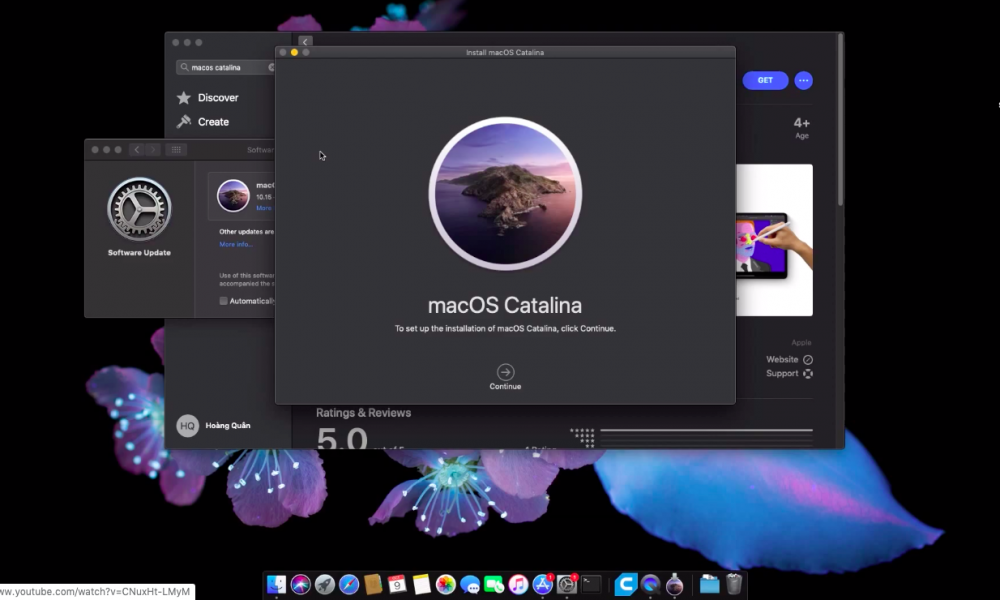

How to create a MacOS Catalina USB Bootable Install Drive.
You will need the following to be able to create a bootable installer drive for macOS Catalina:
- USB flash drive (16GB or larger) – this will be formatted to become the bootable install drive for macOS Catalina.
- The full “Install macOS 10.15 app” installer application download form Mac Store.
- A Mac that is connected to the internet, this is necessary to download the installer
- Devices compatible here: https://support.apple.com/en-us/HT210222
How to create a MacOS Catalina USB Bootable Install Drive.
- Download Install macOS 10.15 app form Mac Store. Link (>8Gb)
- Erase USB with Name = USB, Format = Mac OS Extended (Journaled), Scheme = GUID Partition Map
- Open Terminal and run command:
sudo /Applications/Install\ macOS\ Catalina.app/Contents/Resources/createinstallmedia --volume /Volumes/USB --nointeraction && say Catalina Drive Created

Note: /Volumes/USB = USB Name- Enter your password and wait for the notification to complete.
Done!




Since Mavericks, creating a bootable installation of MacOS requires a single command in Terminal. The createinstallmedia command makes it possible to create a bootable copy of an installer on any drive that’s connected to your Mac.
Since Mavericks, creating a bootable installation of MacOS requires a single command in Terminal. The createinstallmedia command makes it possible to create a bootable copy of an installer on any drive that’s connected to your Mac. Note that the createinstallmedia command erases anything on your external disk though, so make sure there’s nothing on it that you need.